
Laptop Backup: 7 Essential Checks Before a Repair
A laptop backup is easier to rely on when you know what it includes and have checked that a few important files open. Before a repair assessment, prepare a short file inventory, choose a suitable destination and record what remains unfinished. This guide explains seven practical checks, followed by a worked example and a copyable worksheet.
Use this process for a laptop you can safely access. It is not a data-recovery procedure, a diagnosis or a guarantee against loss. If the device is damaged, will not start or behaves unpredictably, explain that before attempting unfamiliar steps. For a work-managed device, follow your organisation’s approved process.
In this guide
1. Define what your laptop backup must protect
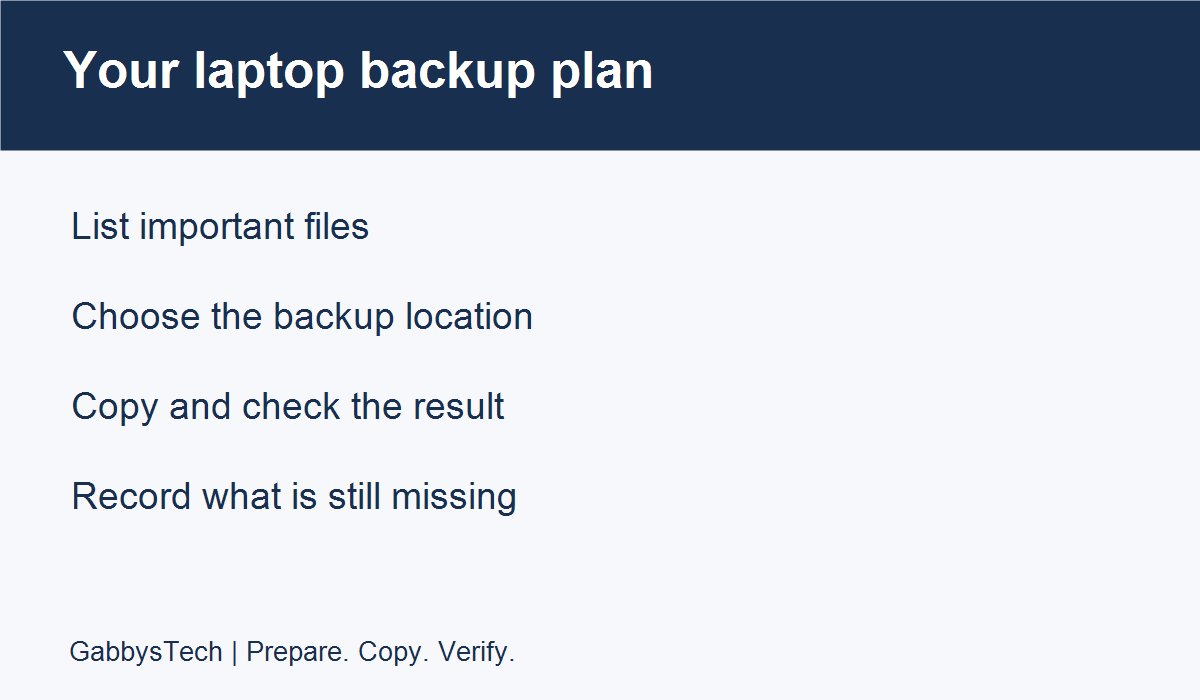
A laptop backup starts with the files you would struggle to replace. List current work, personal documents, photographs and any project folders you rely on. Include the locations you actually use, rather than assuming every important file is on the Desktop. Write down the application associated with specialist files so you can later check whether you can open them. This is an inventory, not a request to move or delete anything immediately.
Separate your own material from files controlled by an employer or another organisation. If a device is managed by your workplace, use its approved support and storage process before copying business information elsewhere. A personal cloud account or a borrowed drive may not be an appropriate destination. Ask the responsible team where a permitted copy should be kept and which steps they want you to follow before arranging a repair.
Add an honest status beside each group: copied and checked, copied but unchecked, not copied or uncertain. These labels make the remaining work visible without pretending that a folder name alone proves a backup is complete. Keep the inventory brief enough to maintain. A short list covering the files that matter is more useful than a long document that never gets updated after you create it.
2. Choose a backup location you control
Decide where the copy will live and how you will reach it when the laptop is unavailable. That question matters before a repair handover: a note saved only on the same device will not help you identify the backup while the device is being assessed. Record a general description of the destination in your plan, while keeping credentials and other private recovery details out of a document you may share.
Microsoft describes several options in its Windows backup and recovery overview. File History can use an external drive or a network location, while other tools serve different backup or recovery purposes. A recovery tool is not automatically a copy of your personal documents. Review the instructions for the method you select rather than assuming all Windows tools protect the same material.
Before copying, make sure you understand which device or account is the destination. Give it a recognisable name in your own records and confirm that you are permitted to use it. If you do not have a suitable location, treat that as an unfinished preparation step. Do not label the laptop backup complete just because you intend to buy storage or create an account later.
3. Make the copy and record its limits
Use the instructions for the backup method you have chosen. For a straightforward file-copy workflow, identify the source folder and the intended destination before beginning. Keep the original files in place while you check the copy. Microsoft provides guidance for copying files with an external storage device, including checking the transferred files. Adapt the workflow to your device and stop if you are unsure which location is being changed.
Write down what you included and what you did not. For example, your copy might cover a current documents folder but not an older archive or an application-specific library. That distinction is useful for your own planning and for a conversation about repair work. Avoid describing a selection of documents as a full system backup if you have not used and verified a method that provides that scope.
Watch for errors or unfinished activity and record the exact message when one appears. Do not assume an error means everything failed, or that most copied files means everything succeeded. Mark the affected item as needing attention. If the laptop is behaving unpredictably, discuss the symptoms before making repeated attempts. An online article cannot determine the condition of your particular device or promise that its files can be recovered.
4. Check that a few important files open
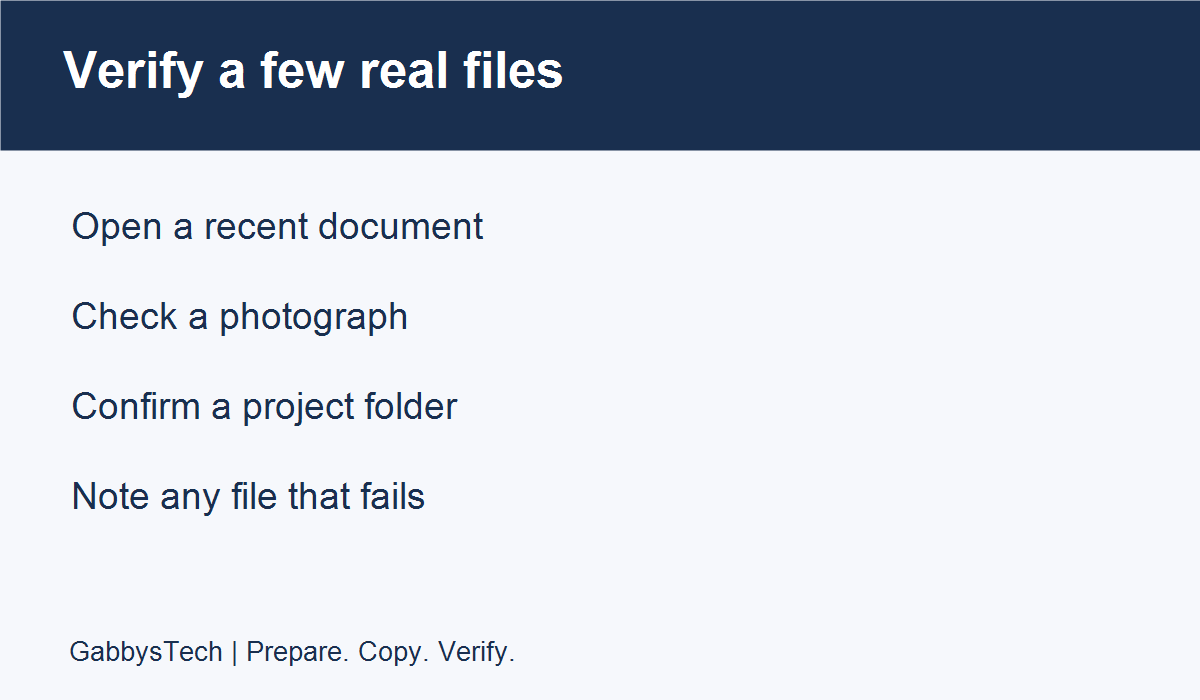
A useful laptop backup check goes beyond seeing a folder in a window. Select a few representative files from the copy: a recent document, a photograph and a project file if you use one. Confirm that they are the versions you expect and that they open in the appropriate application. Make a note of what you checked. This is a sample verification, not proof that every file and application has been tested.
Check a file that matters to your next working day, not only an old picture that is easy to recognise. Confirm its contents and the relevant date or version using the information available to you. If an application is needed to read it, record that dependency. Having a file and having a working environment to use that file are related but different needs, especially when preparing for time away from the laptop.
If a copied file will not open, leave the original alone and record what happened. It may require the right application, a different version or further investigation; do not guess a cause from one failed test. Avoid using your only backup as a place for experimental changes. Ask for help with the specific result and keep a clear distinction between the original, the backup and any separate test copy.
5. Review cloud folders without assuming everything is covered
If you use a cloud service, check which account and folders are involved in your actual setup. Confirm that the important files you expect are available through the service and that you understand how to access them while the laptop is away. A familiar folder icon is not a substitute for checking a real file. Note any uncertainty so it can be resolved before you rely on that location during a repair.
Microsoft’s OneDrive folder backup guidance explains how supported folder protection is configured. Its deletion guidance also explains the effects of deleting items in OneDrive. Do not delete material as a way to test whether it is backed up. Review the service’s current behaviour and your settings before reorganising or removing files that may be synchronised.
Keep the cloud review practical. Write the approved account owner, the folders you checked and the date of the check in your private plan. Keep passwords out of public enquiries and shared handover notes. If access depends on another person or an organisation, agree how availability will be handled. The laptop backup plan should describe what you can actually use, not merely name a service you once installed.
6. Keep account and recovery information private
Think about what you will need to access your files while the laptop is unavailable. Confirm that you know the authorised recovery process for your accounts without placing the recovery information in the article, a public form or a general repair message. If you are unsure how an account is managed, ask its owner or administrator. Do not change security settings simply to make a handover feel easier.
For an encrypted Windows device, Microsoft’s BitLocker recovery-key guidance explains where an existing recovery key may be found. Microsoft notes that it cannot recreate a lost key. This does not mean every repair requires you to disclose the key. Keep it secure and discuss the actual access requirements for the agreed work; never post it in chat, in a screenshot or in an ordinary service enquiry.
Separate a backup plan from a list of secrets. Your plan can say that recovery information is stored securely and identify the responsible person without containing the information itself. If access is later necessary, agree an appropriate method and scope with the service provider. Keep the discussion focused on what is needed for the assessment instead of assuming that every password and account must be handed over.
7. Explain your backup status before repair work begins
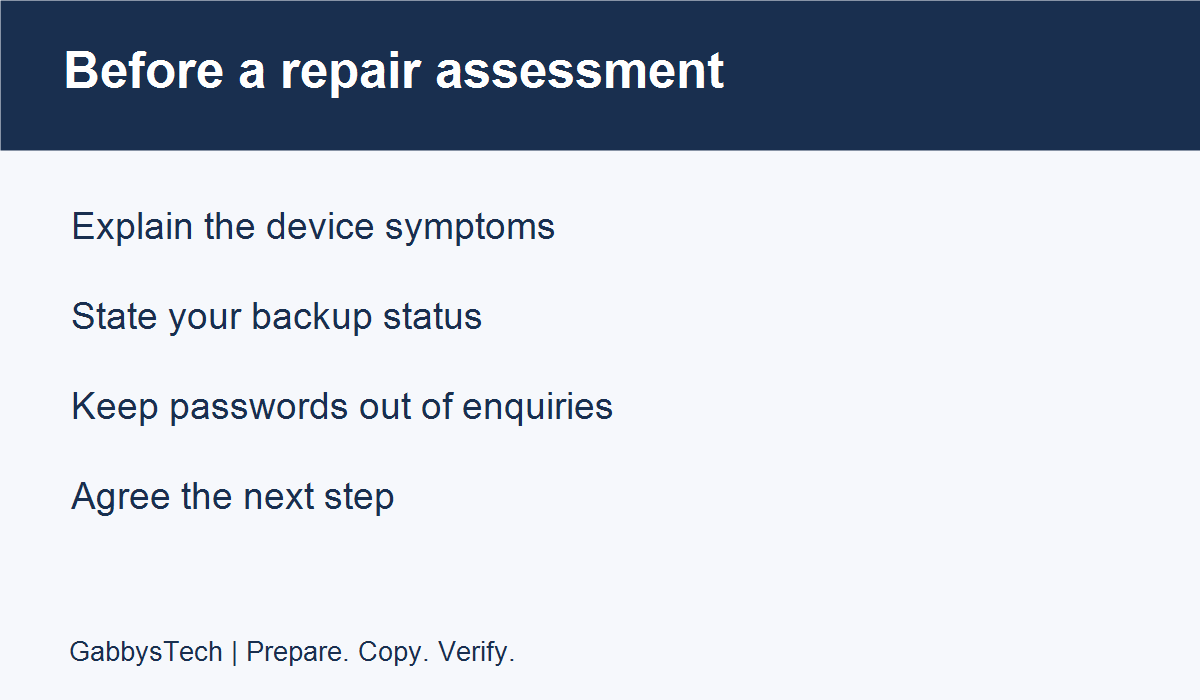
Prepare a short account of the device symptoms and the preparation you have completed. State whether you have a laptop backup, which important folders it covers and whether you checked a few files. Explain any gaps honestly. A repair assessment should not start from an assumption that all data is protected simply because the laptop owner mentioned an external drive or a cloud account during the conversation.
Ask what the proposed assessment involves and which later procedures could affect stored files or installed applications. Clarify when your approval will be requested before additional work proceeds. Keep a copy of the agreed scope with your own notes. A discussion of possible options is not the same as approving all of them. If you do not understand a recommendation, ask for an explanation connected to the problem you want addressed.
Bring relevant observations instead of a diagnosis you cannot verify. If performance is part of the issue, our slow laptop checks guide can help you describe the pattern. Do not repeat troubleshooting that you are uncomfortable performing just to finish a checklist. Knowing which step remains uncertain is useful information for deciding how to continue the assessment safely and clearly.
Make your laptop backup plan repeatable
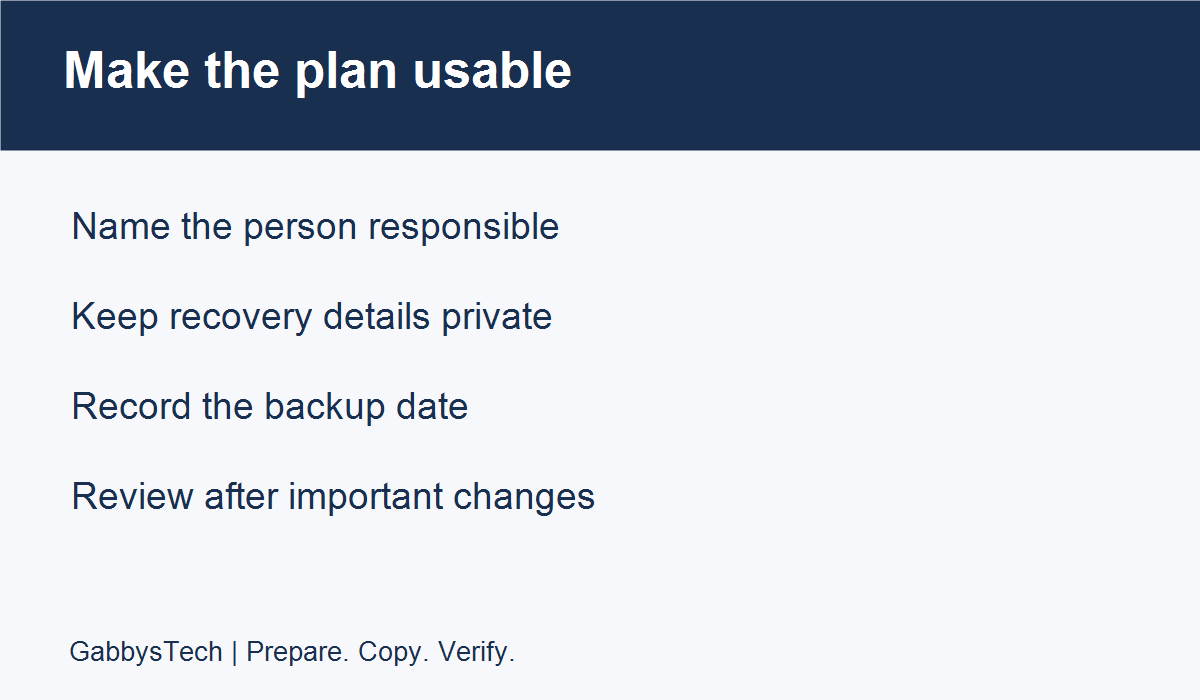
After the first copy is checked, decide who will maintain the plan and which events should trigger another review. You might revisit it after a major project, a change in storage location or a return from repair. Choose a routine that fits how you actually work rather than writing an ambitious schedule you cannot sustain. Record the most recent completed check so a future reviewer can distinguish a current copy from an old one.
Keep the record small. A date, a description of the included folders, the destination and a note about verification are often enough to support a practical conversation. Mark exceptions separately: a file that did not open, an unfinished upload or an account question awaiting its owner. When an exception is resolved, add the result and date. Do not erase the history in a way that makes an unchecked copy appear to have been verified earlier.
If more than one person uses the laptop, agree who owns each part of the inventory and who can approve changes. A family member or colleague may know about a folder you would otherwise miss. This is an opportunity to coordinate responsibility, not an invitation to inspect someone else’s private files without permission. The laptop backup plan should respect ownership and make its limitations clear to everyone relying on it.
Worked example: preparing a laptop for assessment
The following example is illustrative, not a customer case. A laptop owner uses the device for documents, photographs and a small personal project. Before requesting an assessment, they list those three groups and identify where each is stored. They choose an approved backup destination and make a copy using a method they understand. One older project folder is not yet included, so it is marked as unfinished rather than silently omitted.
They then open a recent document and a photograph from the copied location. The document is the expected version, but the project file needs an application that is unavailable on the spare device. The note says exactly that. It does not claim that the file is damaged or that the whole backup failed. The owner now has a specific question to resolve about using the project while the laptop is away.
In the repair enquiry, the owner describes the original symptoms, says that important documents and photos were copied and checked, and mentions the remaining project question. They do not attach private documents, passwords or recovery information to the public message. Before approving any procedure that may affect files, they ask how the scope relates to their backup status. The value of the plan is a clearer decision, not a promise that no problem can occur.
A laptop backup worksheet you can copy
Use one row per meaningful group of files, such as current documents or a project folder. Keep the worksheet in an appropriate private location. It should help you find the next unfinished step without containing the files themselves or the credentials needed to access them. The prompts below are a starting point and can be adapted to an employer-approved process.
- File group: a recognisable description and its owner.
- Original location: enough detail to identify the intended folder.
- Backup destination: a private reference, without passwords or keys.
- Date copied: the actual completed date, not the planned date.
- Verification: which representative files opened and where they were tested.
- Limitations: exclusions, errors and application dependencies.
- Next action: the person responsible and the question still to resolve.
- Handover status: what you can accurately tell the repair provider.
Common questions before a repair handover
Is moving files into another folder on the same laptop enough? A different folder name does not tell you that you have an independent backup destination. Identify the storage and method you are using, and ask how you would access the copy if the laptop were unavailable. If you cannot answer that question, record it as an unresolved preparation step rather than assuming the files are protected.
Does a checked sample prove that every file is recoverable? No. Opening a sample is useful evidence about those files and the environment used for the test. Record the scope of the check honestly. If the work depends on a particular file or application, include it in your preparation instead of relying only on a convenient sample that does not represent your actual needs.
Should I reset Windows before arranging an assessment? A reset is not a prerequisite for asking about repair help. Explain the problem and your laptop backup status first. Ask what the proposed work involves and what preparation is appropriate. Do not erase files or change a working setup simply because you think it will make the device easier to hand over.
What if the laptop will not start or I cannot make a copy? State that clearly when requesting help. Describe the symptoms and avoid claiming that a backup exists when it does not. Ask about an assessment before trying repeated unfamiliar procedures. This guide covers planning for an accessible laptop; it cannot diagnose a non-starting device or guarantee that unavailable files can be recovered.
Discuss your laptop repair preparation with GabbysTech
GabbysTech provides laptop and computer repair assessments in Valenzuela City. Share the device’s brand and model, the symptoms you can describe and the preparation you have completed. Keep the first conversation focused on the issue and the next step, with private files and account credentials left out of a public enquiry.
You can contact GabbysTech to discuss the device before arranging service. A clear laptop backup note helps explain which files are protected, which checks are complete and what still needs attention. It supports an informed discussion of the proposed work without replacing the assessment or promising a particular result.