
Slow Laptop? 7 Practical Checks Before Booking a Repair
A slow laptop can interrupt work, online classes and everyday tasks. Before assuming it needs a new part, take a few careful steps to describe the problem and rule out avoidable workload. These checks are intended for a Windows laptop that starts normally. Stop if there is a burning smell, visible battery damage or a liquid spill, and arrange an assessment instead.
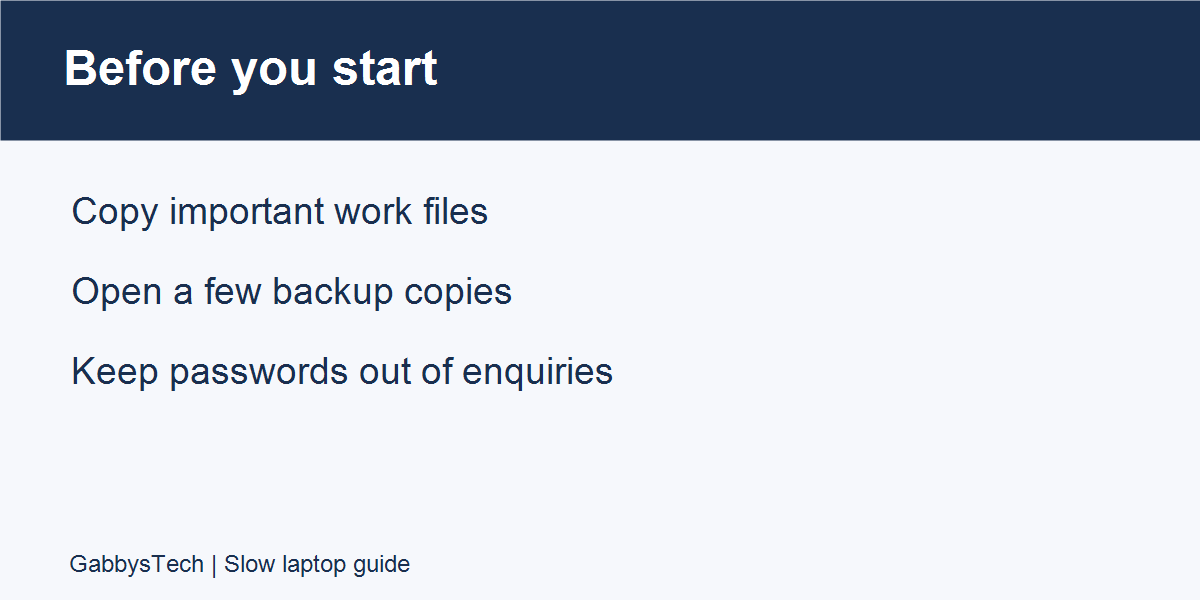
Start by copying important documents and photos to a backup location you control. Open a few copied files to check that they are usable. A backup gives you a safer starting point before troubleshooting or bringing the device for repair. Microsoft explains how to copy files to external storage.
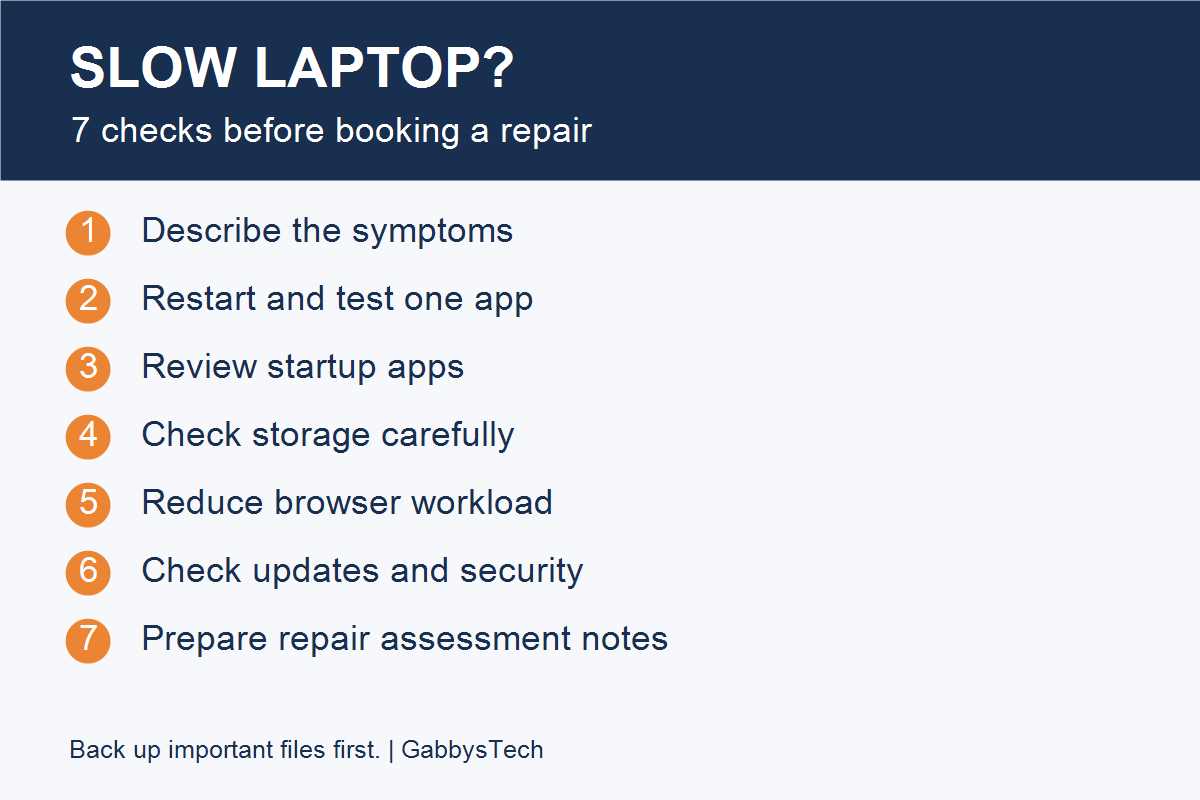
In this guide
1. Describe your slow laptop symptoms
Write down what you are trying to do when the delay appears. Does signing in take a long time? Does typing lag in every app, or only on one website? Is the problem present from startup, or after several hours of work? A short description is more useful than simply saying that everything feels slow.
Compare two ordinary tasks, such as opening a document and loading a familiar website. If documents work normally but websites hesitate, include that difference in your notes. It helps a technician understand what to investigate without assuming the laptop itself is the only cause.
2. Restart, then test a simple workload
Save open work and restart the laptop. After signing in, allow the usual startup activity to settle, then open one app you regularly use. Repeat the same task that felt slow. Record whether the delay has changed, rather than opening every program immediately.
For a slow laptop, a restart is a useful first check, but a temporary improvement does not establish a diagnosis. Microsoft’s PC performance guidance covers restarting, updates and other built-in checks. Avoid downloading unfamiliar “speed booster” software as a substitute for understanding the symptom.
3. Review apps that start automatically
Check the Startup apps list in Windows Settings. Look for optional apps that you recognise and do not need immediately after signing in. Consider disabling automatic startup for those apps, then restart and compare the same simple task again.
Leave security tools and entries you do not understand alone until you can identify them. Turning off startup is different from uninstalling an app. Microsoft’s startup app guide explains how to manage that list. Make one change at a time so you can tell what affected your experience.
4. Check free storage before deleting anything
Open the Storage section in Windows Settings and review available space. If the drive is nearly full, inspect the cleanup recommendations carefully. Move files you want to keep to suitable storage only after checking your backup. Do not delete folders simply because their names are unfamiliar.
Review Downloads and the Recycle Bin before approving cleanup. Automatic cleanup settings also deserve a careful read: choose options that fit how you keep files. Microsoft’s Storage Sense guidance explains its cleanup controls and system-drive scope.
5. Reduce browser workload
If your slow laptop mainly struggles while browsing, close tabs you are finished with and test with a smaller set. Note whether a particular website or extension consistently coincides with the delay. Keep a record of the change before removing anything you rely on for work.
Chrome users can review Memory Saver in the browser’s Performance settings. Google explains that it deactivates inactive tabs to free memory. Review exceptions for websites you need to keep active. This is a browser setting, not proof that the laptop needs additional memory.
6. Check updates and security using built-in tools
Review Windows Update and your existing security application’s status. Save work before installing updates that require a restart. Use the security tools already available on the device to check for reported problems; do not follow an unexpected pop-up’s instruction to install a cleaner or call an unknown support number.
Keep a note of any update or scan error exactly as displayed. Avoid repeatedly changing unrelated settings to chase a result. If this is an employer-managed laptop, follow your organisation’s support process before changing software or security settings.
7. Know when to request a repair assessment
If your slow laptop still struggles with normal tasks after these checks, prepare a short handover note. Include the laptop model, when the issue began, the apps affected, error messages and the checks you have already tried. Explain whether your important files are backed up and which tasks you need the laptop to handle.
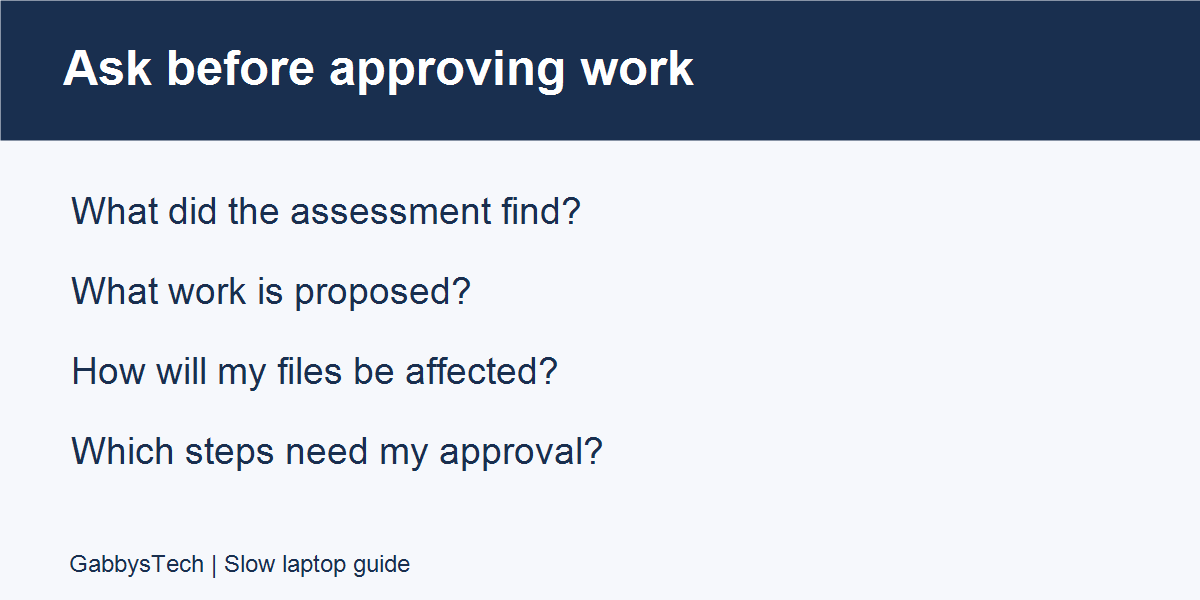
Do not assume that a replacement drive, extra memory or a full reinstall is automatically the right solution. Ask what the assessment found and what each proposed change is intended to address. Persistent freezing, unexpected shutdowns or unusual behaviour deserve a closer look instead of more trial-and-error changes.
Keep a simple troubleshooting log
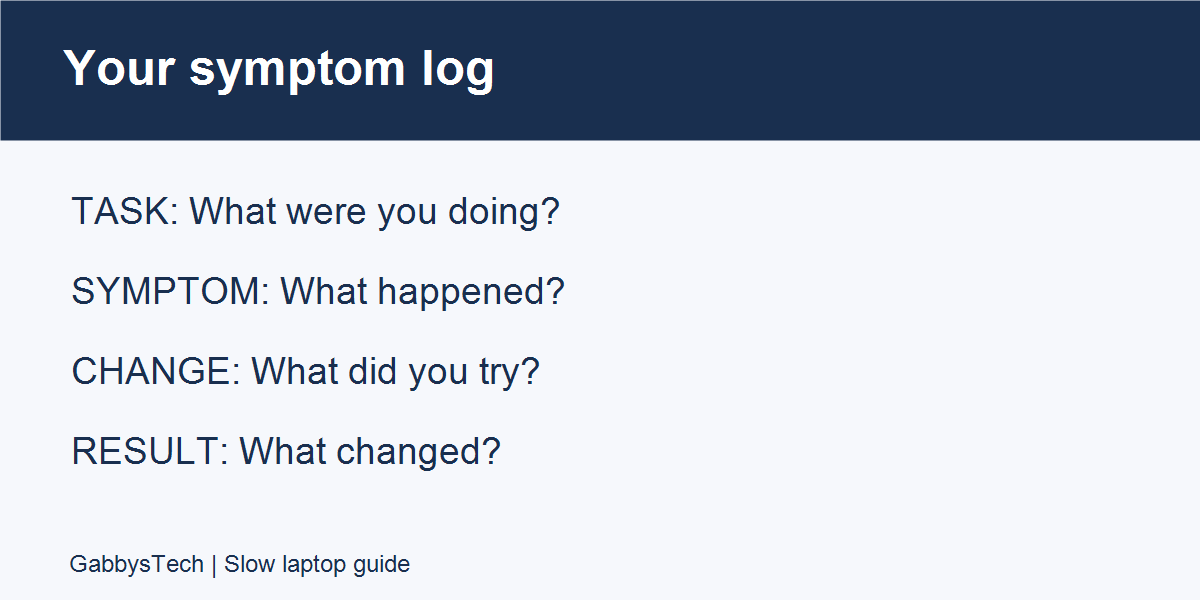
A useful slow laptop log does not need specialist software. Create a note with four columns: time, task, symptom and change made. For example, record that opening your usual document took longer than expected after startup, then note whether the same document opened normally after a restart. Use your own observations rather than copying another person’s timings as a target.
Keep the conditions reasonably similar when comparing results. Testing one document with two browser tabs open is different from testing it while several downloads, meetings and applications are running. Record what was open so the comparison has context. If you cannot reproduce a delay, say so; an intermittent issue is still useful information for an assessment.
Photograph an error message if it helps you record the exact wording, but check the picture for private information before sharing it. A visible email inbox, customer document or account number is not necessary to explain most performance symptoms. Crop or cover unrelated details. Never include passwords, recovery codes or payment information in a repair enquiry.
What to include in your repair enquiry
Prepare the device’s brand and model, a brief description of the problem and when you first noticed it. Explain what you need the computer to do: everyday documents, browser-based work, design applications or another workload. This helps make the conversation about your actual requirements rather than a vague request to make everything faster.
List recent changes you remember, such as installing an application, receiving an update or moving a large collection of files. These details do not prove what caused the problem. Present them as a timeline, not a diagnosis. Mention previous repairs if you know about them, and distinguish what you observed from what someone suggested might be wrong.
Confirm which important files are backed up and whether you have checked that backup. Before work begins, ask what access is needed, whether any proposed procedure could affect stored files, and when you will be asked to approve the next step. Agree on the scope of an assessment before assuming that an upgrade or reinstall has been authorised.
Common slow laptop questions
Does a slow laptop always need a new part?
No single symptom identifies the right repair. The purpose of this guide is to collect useful observations and reduce avoidable workload before requesting an assessment. A recommendation should explain what was found, why the proposed change fits that finding and what problem it is expected to address. Ask for that explanation if a proposed repair is unclear.
Should I reset Windows before bringing the laptop in?
A reset is not a prerequisite for asking for help. If you are unsure about its consequences or your backup is incomplete, discuss the situation first. Explain which checks you have already performed and preserve the error details you recorded. Avoid erasing the context of the problem simply to make the machine look ready for a technician.
What if the laptop is only slow during online meetings?
Include that pattern in your notes. Record the meeting application, whether other apps were open and whether offline work remained responsive. Describe any audio, video or connection messages separately from typing or application delays. Those observations help frame the investigation, while avoiding an unsupported conclusion about which component or service is responsible.
Can I continue working while I decide what to do?
Base that decision on the condition of the device and the importance of your work. Keep current copies of important files and avoid making several unfamiliar changes at once. If you notice physical damage, a burning smell or other concerning changes, stop using the device and seek an assessment. An online checklist cannot confirm that a damaged laptop is safe to operate.
What should I ask after an assessment?
Ask for the findings in plain language, the proposed work and the available alternatives. Clarify the expected effect on your files and installed applications, and ask what preparation is needed from you. Keep a copy of the agreed scope. A clear handover makes it easier to understand the recommendation and decide on the next step for your slow laptop.
Worked examples: describe the problem clearly
The following examples are illustrative notes, not customer cases or diagnoses. Use them to see the difference between a useful observation and an assumption. Replace the details with what actually happens on your own laptop. There is no need to reproduce every test in this article if a device is damaged or you are unsure how to proceed.
Example: the delay happens after signing in
A useful note might read: “After signing in, the desktop appears, but opening my usual document is delayed. I normally have several apps starting automatically. I saved my work, restarted and tried opening the document before opening other apps. The delay was shorter, but I have not identified a cause.” This describes the task, conditions, change and result without claiming that one application is faulty.
Your next note could list the startup entries you recognised and the single optional app whose startup setting you changed. Keep the original setting in your notes so you can explain or reverse your own change if appropriate. If you are uncertain what an entry does, leave it as it is and include its name in your enquiry instead of guessing.
Example: only browser work seems affected
A second note might say: “Typing in a saved document is responsive. My browser feels delayed when I have a meeting, several tabs and a web application open together. I closed tabs I had finished with and tested the same application again. I also recorded the exact message shown when the meeting became interrupted.” This separates a browsing workload from a general complaint about the entire computer.
Avoid treating this example as evidence that your internet connection, browser or hardware must be at fault. The point is to describe the pattern accurately. If the issue does not happen during the next test, record that too. An honest record of an intermittent slow laptop problem is more useful than changing the story to make it appear consistent.
Example: cleanup options are confusing
A third note could read: “Storage Settings shows that space is limited. I have checked a backup of my current work files, but I am unsure which cleanup categories are safe for my needs. I have not deleted unfamiliar folders.” This gives a support person a clear starting point and makes the boundary of your troubleshooting explicit.
You do not need to remove files just to complete a checklist. If a suggested action is unclear, pause at that step. Write down what you can see and ask for help with that specific decision. This approach preserves your ability to explain the original situation and reduces the chance that important work is removed during an unrelated cleanup attempt.
A copy-and-fill laptop assessment note
Use the following prompts to prepare a short enquiry. Keep it concise enough for someone to read before an assessment. Do not include login credentials, full personal documents or unrelated customer records. If a prompt does not apply, mark it as unknown rather than inventing an answer.
- Device: brand and model, plus whether it is your personal device or managed by your employer.
- Main task affected: describe one normal task and what happens when you try it.
- When it started: give an approximate date or describe the first occasion you remember.
- Pattern: note whether the delay happens at startup, during a particular app or after extended use.
- Messages: copy the exact wording of relevant errors, leaving out private account information.
- Checks completed: list the steps you actually tried and the result of each.
- Files: state whether important files are backed up and whether you checked the copies.
- Support goal: explain the work you need to resume and any questions you want answered before approving changes.
For instance, your goal might be to make routine document work usable again, while preserving a particular set of business files. State that goal directly. It is clearer than requesting an unspecified “upgrade,” which may mean something different to the person receiving the enquiry. A defined goal also makes the proposed scope easier for you to assess.
Review the recommendation before approving work
When an assessment is complete, compare the recommendation with the symptoms you originally described. Ask which finding relates to the delayed task and what evidence supports the suggested next step. You can ask for a plain-language explanation without needing to know the names of every component inside the laptop.
Clarify whether the recommendation is further investigation, a software change, a replacement part or another action. Ask which work is included and which decisions will require your approval. Do not assume a conversation about possible options is the same as authorising all of them. Keep your own copy of the scope you agreed to.
Before collecting the device, ask how to test the task that originally caused trouble. Bring the same non-sensitive example you used in your notes if appropriate, or agree on a similar demonstration. The purpose is to understand the outcome in terms of your normal work, rather than relying only on a general statement that the laptop feels faster.
Finally, keep the symptom log and the explanation of completed work with your device records. If the issue returns, update that record with what happened instead of starting a new chain of unrelated adjustments. Clear records support a more focused follow-up conversation and help you explain what has changed since the previous assessment.
Keep these notes brief, factual and focused on the task you want to complete. You can bring questions to an assessment even when you do not know the technical cause of a problem.
Need help with a slow laptop?
Explore GabbysTech laptop and computer repair services and share the symptoms you recorded. A clear description helps start a more useful conversation about the next step. You can also contact GabbysTech to discuss your device and support needs.