
Storage Cleanup: 7 Easy, Essential Checks
Storage cleanup should begin with understanding what occupies the drive and which files you must retain. Freeing space is useful, but deleting unfamiliar folders can create a larger problem. Plan a careful review with a usable backup and clear ownership decisions.
In this guide
A practical storage cleanup example
A small business laptop contains old downloads, duplicate project exports, and current customer records in the same folder. The owner should identify important work before any cleanup. A technician can explain the storage categories, but the business still needs to decide which records must be retained.
1. Check the current storage picture for storage cleanup
Review the drive capacity and available space using the operating system’s supported tools. Note the large categories rather than guessing from the number of desktop icons. The amount of free space is a useful starting point, not a complete diagnosis of a slow machine.
2. Identify files that must be kept
Separate active projects, personal files, licences, and records with retention requirements. Ask the appropriate person about business or school data before removing anything. Do not assume a folder is disposable because its name looks old or because another person created it.
3. Verify a separate backup for storage cleanup
Copy essential files to an approved destination and open several copied items. Check that the backup includes the current version rather than an empty folder or shortcut. Do not delete originals until you understand where the usable copy is and who can access it.
4. Review downloads and large personal files
Look through large items individually and confirm their purpose. Installers, exported videos, and repeated archives can accumulate, but some may still be needed. Use a clear decision list so that important material is not removed simply because it is large.
5. Use supported cleanup options for storage cleanup
Prefer the cleanup controls built into the operating system and read each category before accepting removal. Pay attention to downloads and recovery-related items. Avoid deleting system folders manually or installing an unfamiliar cleaner based on an advertisement promising an instant performance fix.
6. Consider an archive or capacity review
If legitimate files occupy most of the drive, repeated deletion may not be the right plan. Discuss a sensible archive, approved cloud storage, or a compatible storage upgrade. Compare ongoing access needs, backup responsibilities, and costs before moving work to a different place.
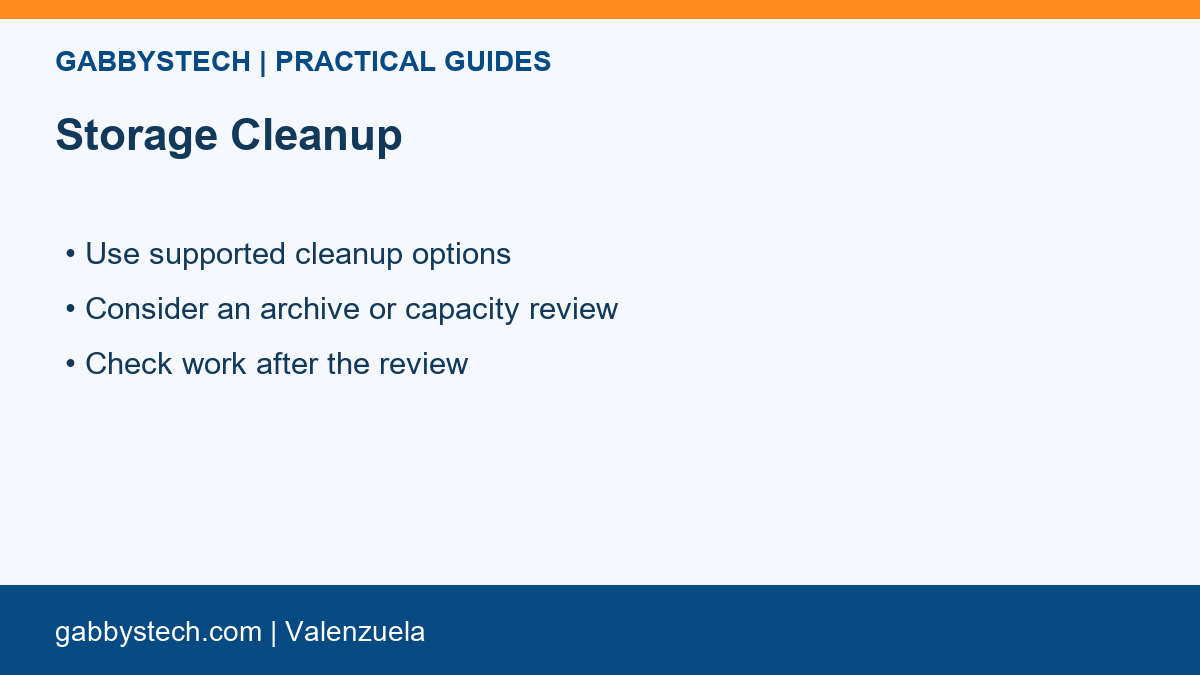
7. Check work after the review for storage cleanup
Open a selection of current files and confirm that applications still work normally. Record the amount of space recovered and keep the backup available. If the original complaint remains, describe it separately; a cleaner drive does not prove that another fault has been corrected.
Prepare a clear storage cleanup inquiry
Before asking for help, collect the exact details that explain the problem. Separate what you observed from what you think caused it. A note such as “the problem started after this change” is useful; claiming that a particular part has failed without an assessment can send the discussion in the wrong direction.
Keep a copy of the original situation and the changes already tried. Include your main task, the point where it fails, and any practical deadline. Use sample information that contains no confidential records. Passwords, recovery codes, customer documents, and private account details should stay out of public comments and ordinary inquiry forms.
Storage Cleanup: a question worth asking
Can I delete unfamiliar folders to recover space quickly?
Avoid doing so. Identify the folder and its role first, especially for system, application, or business data. Use supported cleanup tools, keep a verified backup, and ask for help when ownership or purpose is unclear. A fast deletion can be difficult to reverse.
Record the decision and the result
A useful storage cleanup plan has a clear owner and a clear next step. Write down what will be checked, who will approve changes, and how the result will be verified. If the proposed work changes after review, ask for an updated explanation before additional work begins. Keep completed work separate from suggestions for later.
| Record | What to include |
|---|---|
| Starting point | Your model or page, main task, and specific symptom |
| Agreed scope | Checks, exclusions, proposed changes, and approval |
| Acceptance | The original task repeated and any remaining issue |
For device work involving files, review our backup preparation guide and repair handover questions. Microsoft’s backup and recovery resources are another useful starting point for supported Windows options.
Discuss storage cleanup with GabbysTech
GabbysTech in Valenzuela can discuss your device issue and the information needed for the next assessment. Send the exact model, your normal workload, and a short description of the problem through our website. Ask about the scope and applicable charges before approving service. A storage cleanup checklist supports a clearer conversation; it does not replace inspection or guarantee a particular outcome.