
Startup Apps: 7 Easy, Essential Checks
Startup apps deserve a review when a Windows laptop feels busy immediately after sign-in. The aim is to understand what launches automatically and which tools you need. Disabling unfamiliar items at random can interfere with useful functions or managed software.
In this guide
A practical startup apps example
A freelancer waits for several chat, sync, and creative applications to open before starting work. A review should preserve essential security and business tools while identifying optional programs. Record the original choices so that a change can be reversed if something important no longer starts normally.
1. Measure the actual delay for startup apps
Separate the time before the sign-in screen from the time after signing in. Note which applications appear and when the machine becomes usable. This helps explain whether the complaint concerns automatic programs, the operating system startup, or a different performance issue.
2. Review the supported Windows controls
Use the startup-app controls provided by Windows and note each item before changing it. Microsoft documents startup configuration through its official support resources. Avoid following advice to delete unfamiliar system files or use a registry cleaner as a shortcut.
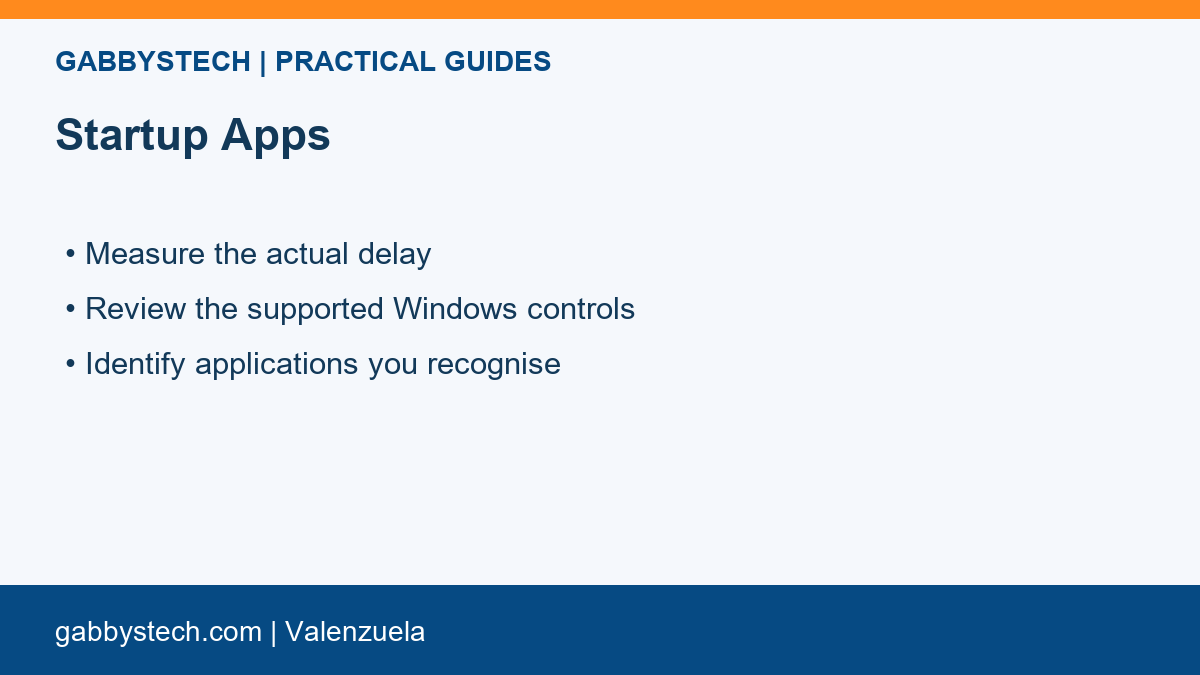
3. Identify applications you recognise for startup apps
Connect each startup item to a program you actually use. If the publisher or purpose is unclear, investigate through a trusted support channel before changing it. An unfamiliar name is not automatically unwanted software, especially on a managed work or school device.
4. Keep required protection and work tools
Security software, backup tools, accessibility features, and employer-managed applications may need to start automatically. Ask the responsible administrator if you are unsure. A faster-looking desktop is not an improvement if important protection, access, or scheduled work stops functioning.
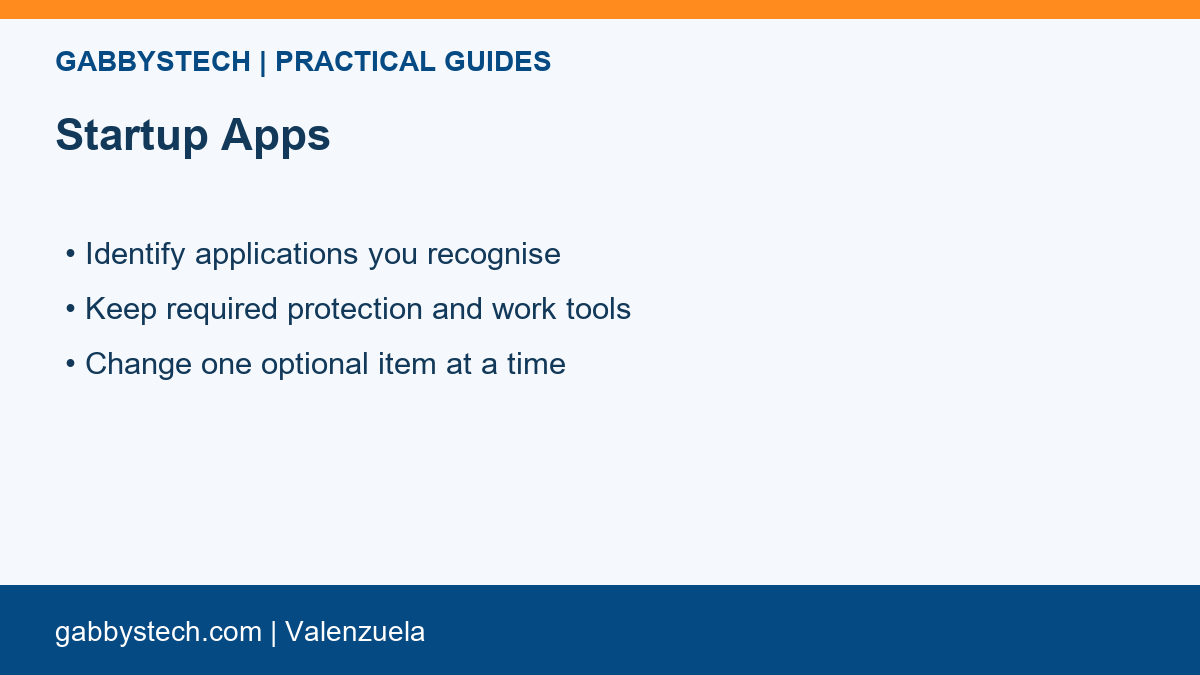
5. Change one optional item at a time for startup apps
Begin with a clearly identified nonessential application and record the original setting. Restart at a suitable time and compare normal use. Making several changes together may save a few clicks but makes it harder to tell which decision affected the result.
6. Compare the same workload
After sign-in, open your usual documents and applications. A quieter startup may help organisation without solving the underlying slowdown. If the device remains slow, keep notes about memory, storage, and heat symptoms for an assessment rather than disabling more items blindly.
7. Keep the review maintainable for startup apps
Revisit the list when you install new software or change your work routine. Store the decisions with your device notes. If an application needs to start again, restore the known setting and verify its normal behaviour. Treat the list as a practical preference, not a permanent blacklist.
Prepare a clear startup apps inquiry
Before asking for help, collect the exact details that explain the problem. Separate what you observed from what you think caused it. A note such as “the problem started after this change” is useful; claiming that a particular part has failed without an assessment can send the discussion in the wrong direction.
Keep a copy of the original situation and the changes already tried. Include your main task, the point where it fails, and any practical deadline. Use sample information that contains no confidential records. Passwords, recovery codes, customer documents, and private account details should stay out of public comments and ordinary inquiry forms.
Startup Apps: a question worth asking
Should every application be disabled at startup?
No. Keep tools that need to run automatically for security, backup, accessibility, or business requirements. Review optional applications individually, document changes, and consult the administrator for managed devices. The right list depends on the work the laptop supports.
Record the decision and the result
A useful startup apps plan has a clear owner and a clear next step. Write down what will be checked, who will approve changes, and how the result will be verified. If the proposed work changes after review, ask for an updated explanation before additional work begins. Keep completed work separate from suggestions for later.
| Record | What to include |
|---|---|
| Starting point | Your model or page, main task, and specific symptom |
| Agreed scope | Checks, exclusions, proposed changes, and approval |
| Acceptance | The original task repeated and any remaining issue |
For device work involving files, review our backup preparation guide and repair handover questions. Microsoft’s backup and recovery resources are another useful starting point for supported Windows options.
Discuss startup apps with GabbysTech
GabbysTech in Valenzuela can discuss your device issue and the information needed for the next assessment. Send the exact model, your normal workload, and a short description of the problem through our website. Ask about the scope and applicable charges before approving service. A startup apps checklist supports a clearer conversation; it does not replace inspection or guarantee a particular outcome.