
GT Automated Reporting Pro
Connected Power Query reporting workbook, CSV samples, query source, and refresh guide.
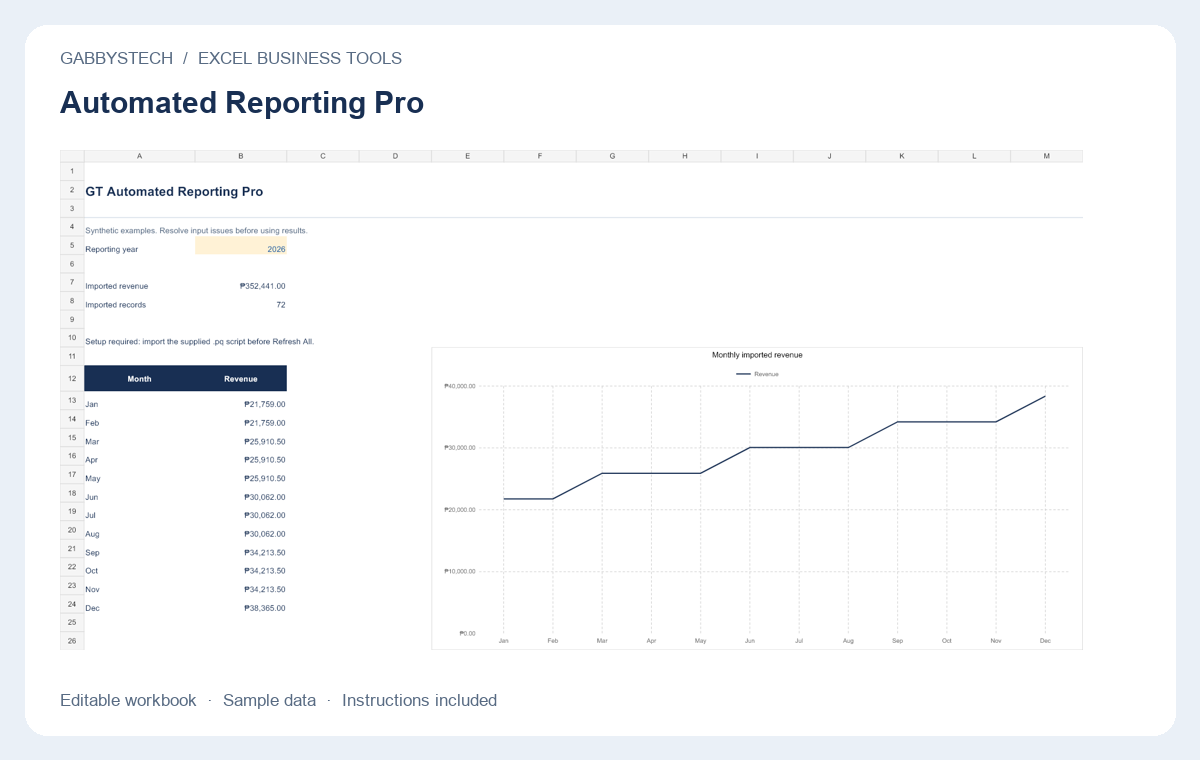
Automated Reporting from GabbysTech is a Power Query reporting workflow for combining monthly sales CSV files into an Excel reporting table and formula-backed summary. Review the included files, requirements and scope below to decide whether this digital product matches your workflow. The launch price shown on this page is in Philippine pesos.
Product guide
What Automated Reporting helps you do
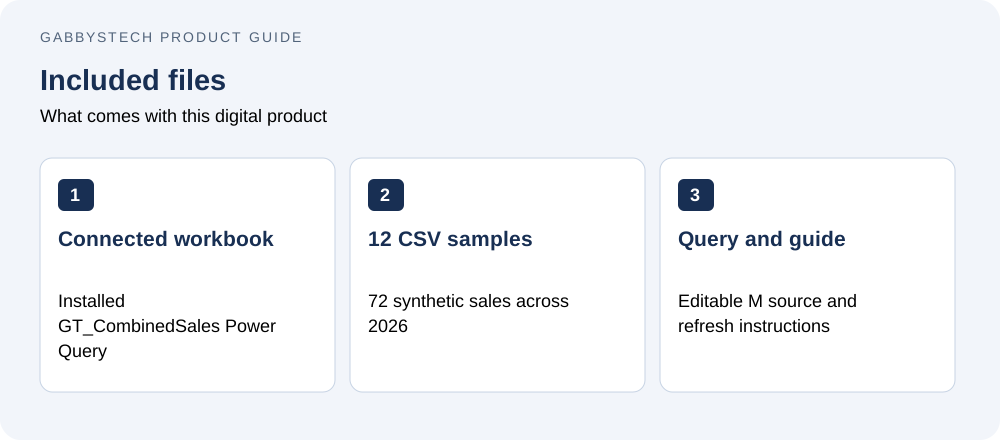
The package includes a connected workbook, twelve monthly CSV sample files, editable query source and a refresh guide. The query checks required fields and duplicate sale IDs, combines matching exports and calculates revenue. A refresh replaces the table from its source files rather than appending a second copy of the previous results.
What is included
Connected .xlsx workbook with the installed GT_CombinedSales Power Query connection, 12 monthly UTF-8 CSV samples, editable .pq query source, refresh guide and license. Combines source files, validates required data and duplicate SaleID values, and refreshes monthly sales reporting.
Requirements
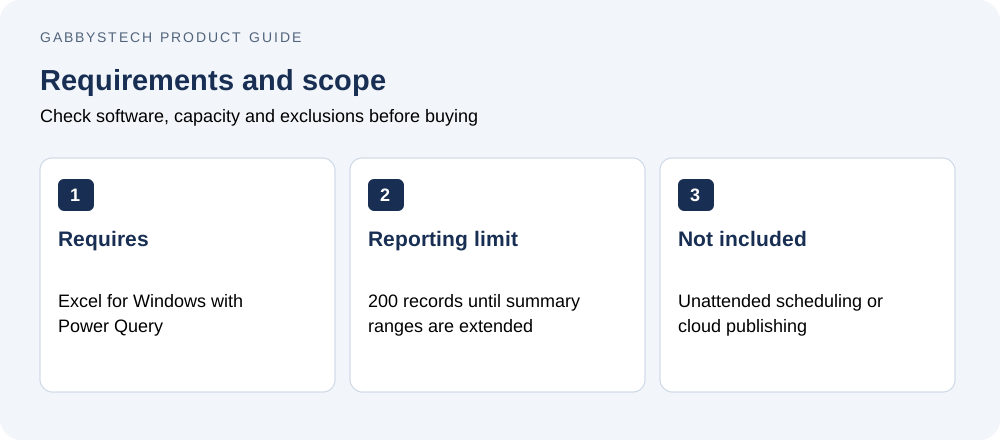
Microsoft Excel for Windows with Power Query. Extract the full ZIP and save the workbook before Refresh All.
Scope and limits
Editable business templates for operational use. Review source status messages and replace all sample records. No installation or customization service is included.
Entry sheets support 200 records and masters support 30 items/employees where applicable. Extend formulas, validations, chart ranges and summary references together for larger datasets. All samples are synthetic. Amounts are Philippine pesos.
License and support
GabbysTech Business Tools License. Use and edit for your own business and client reports. Template resale and redistribution are not permitted. Microsoft licenses are separate. Support: admin@gabbystech.com.
Getting started with Automated Reporting
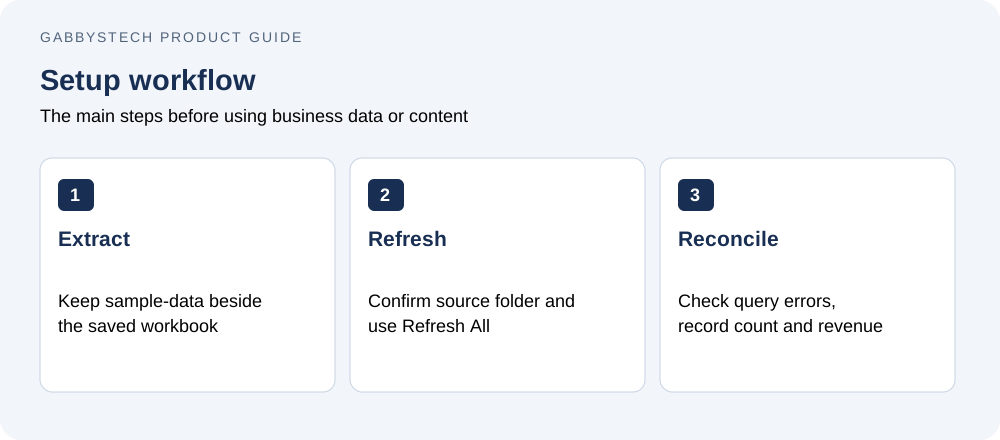
Extract the entire ZIP and keep sample-data beside the workbook. Open and save the Excel file, confirm the folder path in Settings and use Data, Refresh All. Reconcile the 72 synthetic sample sales and their expected revenue before substituting business exports. Put only matching source CSV files in the selected folder and check Queries & Connections for refresh errors.
Before you buy Automated Reporting
Who is this product for?
Automated Reporting is intended for Excel for Windows users who receive repeatable CSV sales exports and want a documented manual refresh workflow. Check the detailed compatibility requirements before ordering. The price covers the listed digital files; it does not include a Microsoft license, WordPress hosting, a domain, installation or a custom implementation service.
How will I receive the files?
This is a digital download, with no physical shipping. WooCommerce makes the protected ZIP available after payment is confirmed. Use your account and order download details to access it, then extract the package and read the included guide before installing or editing files.
Can I replace the examples with my own information?
Yes. The editable files and guides explain the supported setup. Keep a clean original copy of Automated Reporting, then work in a separate copy or staging site. Replace all fictional or synthetic examples with your own information. Review calculations, contact links or page content before using the result for real business activity.
What should I check before relying on the result?
Confirm that the required software is available and that you understand the stated limits. Follow the supplied setup steps and compare a few representative results with your own records. A sample preview demonstrates layout and workflow; it does not provide your business policies, approved payroll rules, accounting treatment or guaranteed commercial outcomes.
A failed query refresh can leave old values visible. Check Queries & Connections, repair the source error and reconcile the refreshed record count before treating the report as current. Manual Refresh All is included; unattended scheduling is not.
Related tools and product help
Compare Automated Reporting with GT Sales Dashboard Excel or browse the full digital shop. For the underlying software, see the official software documentation. These resources help you check compatibility and decide which tool fits the work you need to do.
For a question about the files included in Automated Reporting, contact admin@gabbystech.com with the product name and a clear description of the issue. Review the package license for permitted use. Keep your original download and a copy of the guide so your team can repeat the setup consistently.