
WiFi Troubleshooting: 7 Easy, Essential Checks
WiFi troubleshooting is easier when you separate the laptop, the local wireless connection, and the internet service. Start with a simple symptom record. Changing several settings at once can hide which action helped and make the next assessment more difficult.
In this guide
A practical wifi troubleshooting example
A shop owner can open a website on a phone but not on the work laptop. That comparison narrows the inquiry without proving a particular component has failed. Record whether the phone uses the same WiFi rather than mobile data, and whether the laptop fails on every website or only one service.
1. Define the connection problem for wifi troubleshooting
Distinguish no visible network, a failed connection, a connected device with no internet, and slow access. These are different symptoms. Note the time and location where the issue appears, and whether the problem affects all applications or only a browser or meeting tool.
2. Compare another device fairly
Use a second device on the same network if available and safe. Check that it is not using mobile data. A working comparison helps describe the scope of the issue, but do not treat it as a complete diagnosis of the laptop, router, or internet service.
3. Record distance and obstacles for wifi troubleshooting
Note whether the problem changes near the router or in another room. Building materials, placement, and interference can affect the experience. Do not buy extra networking equipment solely because one room is slow; describe the layout and ask which measurements would support a useful change.
4. Check ordinary connection settings
Confirm that wireless networking is enabled and that you are selecting the intended network. Record any error message without sharing the network password publicly. Avoid deleting configurations or resetting everything before you have a record of the current setup and permission to change it.
5. Review recent changes for wifi troubleshooting
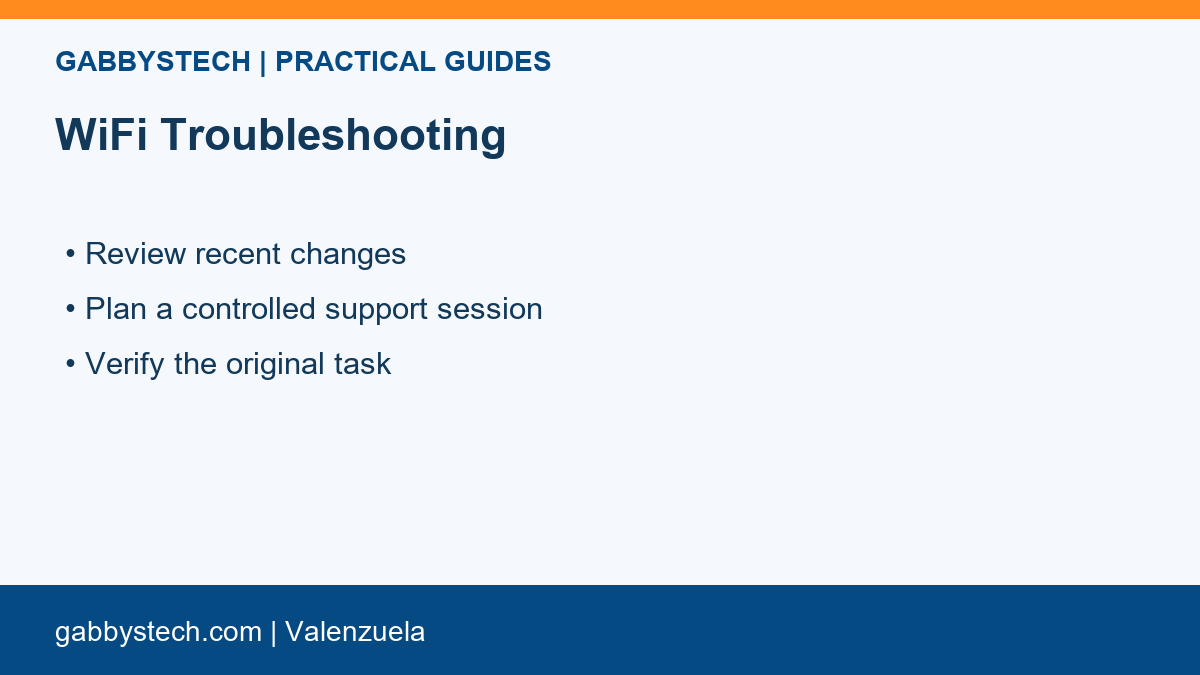
Mention recent software updates, a new router, a moved desk, or an adapter change. A timeline can be more useful than a long list of random fixes. If the laptop belongs to an employer or school, use its approved support process before changing managed settings.
6. Plan a controlled support session
Prepare the device model, operating system, symptom notes, and a safe time for interruption. Restarting shared equipment can interrupt other people, so agree on the test window first. Keep account details private and avoid installing remote-access tools from an unexpected message.
7. Verify the original task for wifi troubleshooting
Repeat the activity that previously failed, such as opening a work website or joining a test call. Check again in the location where the issue occurred. Record remaining limitations so a temporary improvement is not confused with a reliable resolution.
Prepare a clear wifi troubleshooting inquiry
Before asking for help, collect the exact details that explain the problem. Separate what you observed from what you think caused it. A note such as “the problem started after this change” is useful; claiming that a particular part has failed without an assessment can send the discussion in the wrong direction.
Keep a copy of the original situation and the changes already tried. Include your main task, the point where it fails, and any practical deadline. Use sample information that contains no confidential records. Passwords, recovery codes, customer documents, and private account details should stay out of public comments and ordinary inquiry forms.
WiFi Troubleshooting: a question worth asking
Does a connected WiFi icon guarantee internet access?
No. It describes a connection to a local wireless network, not successful access to every internet service. Compare the affected applications and other devices, record the findings, and ask for help with the specific symptom rather than assuming the adapter is broken.
Record the decision and the result
A useful wifi troubleshooting plan has a clear owner and a clear next step. Write down what will be checked, who will approve changes, and how the result will be verified. If the proposed work changes after review, ask for an updated explanation before additional work begins. Keep completed work separate from suggestions for later.
| Record | What to include |
|---|---|
| Starting point | Your model or page, main task, and specific symptom |
| Agreed scope | Checks, exclusions, proposed changes, and approval |
| Acceptance | The original task repeated and any remaining issue |
For device work involving files, review our backup preparation guide and repair handover questions. Microsoft’s backup and recovery resources are another useful starting point for supported Windows options.
Discuss wifi troubleshooting with GabbysTech
GabbysTech in Valenzuela can discuss your device issue and the information needed for the next assessment. Send the exact model, your normal workload, and a short description of the problem through our website. Ask about the scope and applicable charges before approving service. A wifi troubleshooting checklist supports a clearer conversation; it does not replace inspection or guarantee a particular outcome.